Documentation
Everything the dashboard can do, explained in plain terms. Pick a section from the sidebar, or start with Getting started below.
Getting started
Every instance starts the same way: pick a plan, choose where it runs, and check out. The server itself is usually ready in under 10 minutes.
Choosing a plan and provider
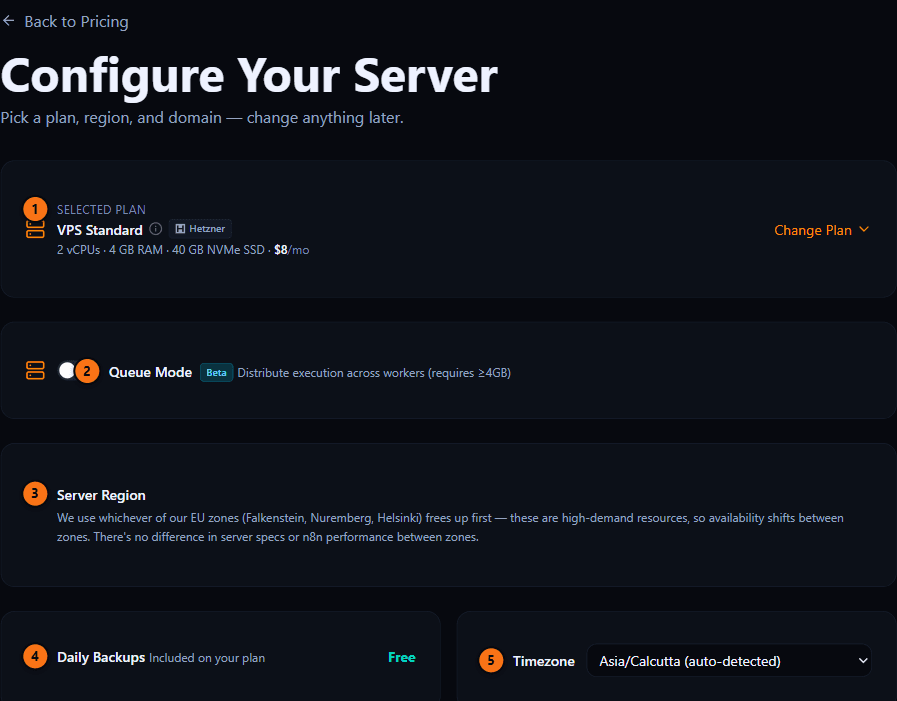
/pricing and /checkout list plans across four providers — DigitalOcean, Hetzner, InterServer, and Lightsail — each with its own vCPU, RAM, and disk combinations and regions. Pricing and specs differ by provider, so it's worth comparing before you commit. If you're not sure, a basic plan covers most single-user automation workloads; heavier, parallel workloads need Queue Mode, which requires 4GB RAM or more (see Queue mode below).
Domain and timezone
Pick a free subdomain (yourname.n8nautomation.cloud) or bring your own domain — SSL is configured automatically either way, no certificate setup on your end. You also set your instance's timezone at checkout, which controls when Schedule and Cron nodes actually fire.
Add-ons
Daily Backups adds automatic daily snapshots of your instance (see Backups & restore) — free automatically once your plan is above $18/mo, a paid add-on below that. The one-time n8n Workflow Support add-on ($99) gets you export help and two months of direct guidance if you're migrating something complex.
Trial and checkout
New plans include a 10-day free trial. Your card is saved at checkout but isn't charged until the trial ends, so you can cancel from Billing before then with nothing billed. Promo codes and referral links (?ref=) both apply as a discount on your first month.
What happens after you pay
Provisioning runs through a few stages you can watch live on the dashboard: queued, creating the server, booting, configuring the domain, then propagating DNS. Once it flips to active, open your instance from the dashboard — or visit your domain directly — and you'll land on n8n's own first-run screen. Create an owner account there; that's your n8n login, separate from your n8nautomation.cloud account.
Your dashboard
/dashboard lists every instance you own. The sidebar is the same on every dashboard page, grouped into Main (Dashboard, Migrate, Billing), Instance (Updates, Backups, Upgrade, Queue Mode, Logs — these deep-link straight into the matching tab of whichever instance you were last viewing), and Account (Profile, Affiliate, Support).
Adding another instance
Running more than one automation project? Click New Instance in the sidebar to go through checkout again — nothing about your existing instances changes.
Notifications
The bell in the header collects version updates, billing events, trial and grace-period warnings, and anything we send directly. Mark items read individually, mark all read, or dismiss the ones you don't need.
Getting help
Support in the sidebar opens live chat (the bubble in the bottom-right corner) or an email link to [email protected]. Chat gets you the fastest response.
Managing your instance
Everything here lives on your instance card at /dashboard, or via the tab links in the sidebar.
Restart and Resume
Quick Restart reboots the instance without opening a new tab. If a trial instance went unused long enough to auto-suspend, the card shows a Resume button instead — click it and a fresh server spins up in your instance's place, picking up where the trial left off.
Server health
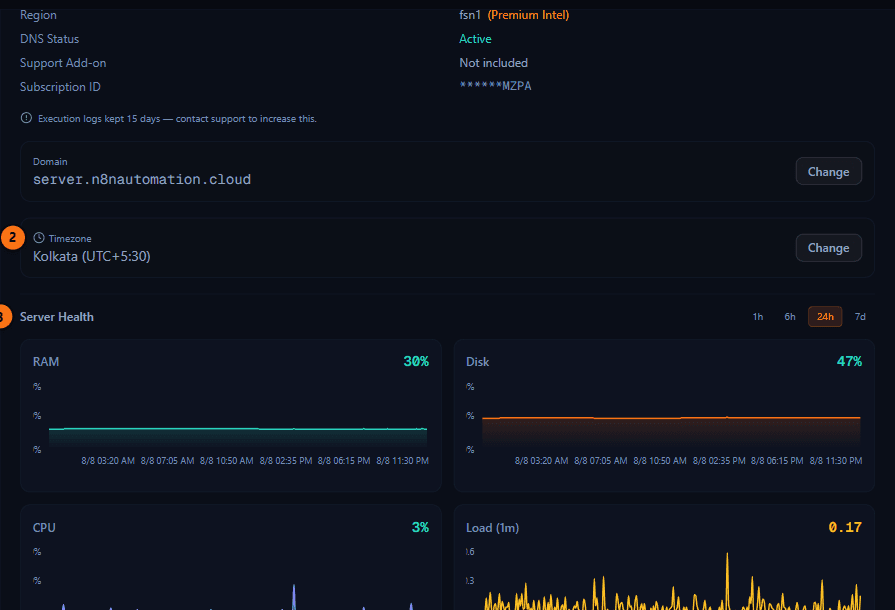
The Details tab charts RAM, disk, CPU, and 1-minute load average over 1h/6h/24h/7d windows, refreshing automatically every 60 seconds, plus averages over 12h/24h/7d/15d/30d if you want the longer trend.
Timezone
Details tab — changing your instance's timezone changes when Schedule and Cron nodes fire, not your dashboard's display timezone. Applying it restarts the instance briefly.
Reset Login
Details tab → Reset Login — locked out of n8n itself? Reset Login clears every n8n user account on the instance and puts it back on the first-run "create an owner account" screen. Your workflows and saved credentials are untouched. You'll get a confirmation email when it's done.
Domains
Every instance runs on either a free subdomain or a domain you already own — SSL is automatic on both.
Changing your domain
Details tab → Change Domain — switch to a different subdomain or a custom domain at any time. If the custom domain you enter already has DNS pointed somewhere else, you'll see subdomain suggestions or an option to use it anyway. Your current domain keeps serving traffic until the new one verifies, so there's no downtime window. You can change domains again after 24 hours.
Pointing a custom domain
Add an A record at your registrar pointing to the IP address shown in your dashboard. We check public DNS automatically — once it resolves, the domain goes live and SSL provisions itself via Caddy. Adding a custom domain during initial setup works the same way; the dashboard shows a Verify DNS button once the record is in.
Backups & restore
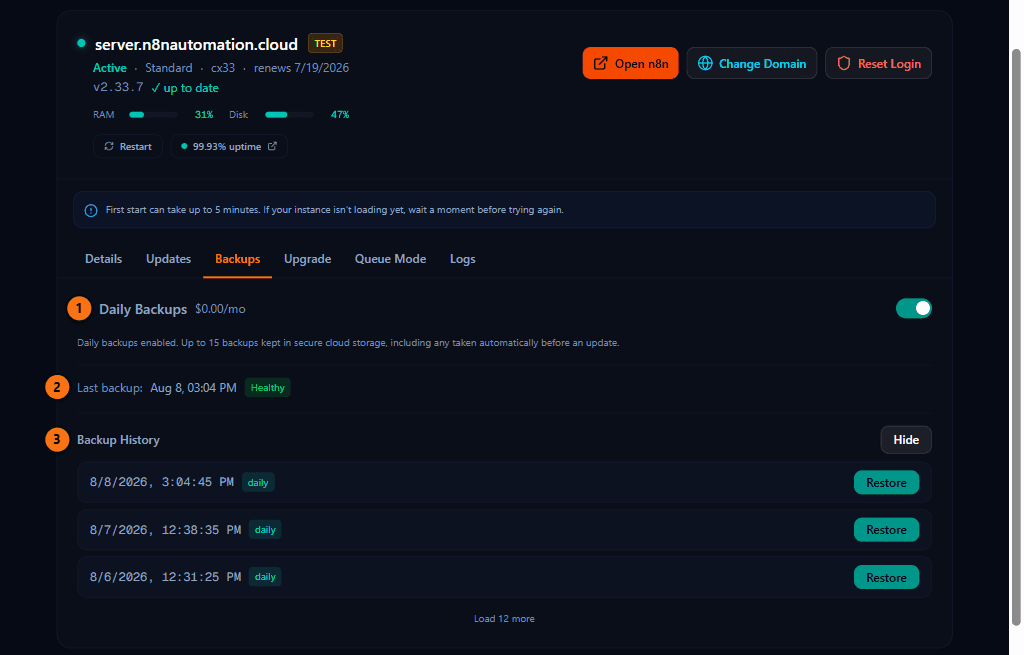
Daily Backups, when enabled, snapshots your instance automatically every day.
Turning it on
Backups tab — the price is 20% of the server's base cost plus $1/month, free automatically once your plan is above $18/mo. Below that, it's a paid add-on you can toggle on or off anytime.
Restoring a backup
Up to 15 backups are kept — your daily backups plus an automatic safety snapshot taken before every update. Pick any of them from the Backups tab and click Restore; there's no need to contact support.
Updates
n8n itself ships new versions regularly. You don't have to track that yourself.
Checking and applying updates
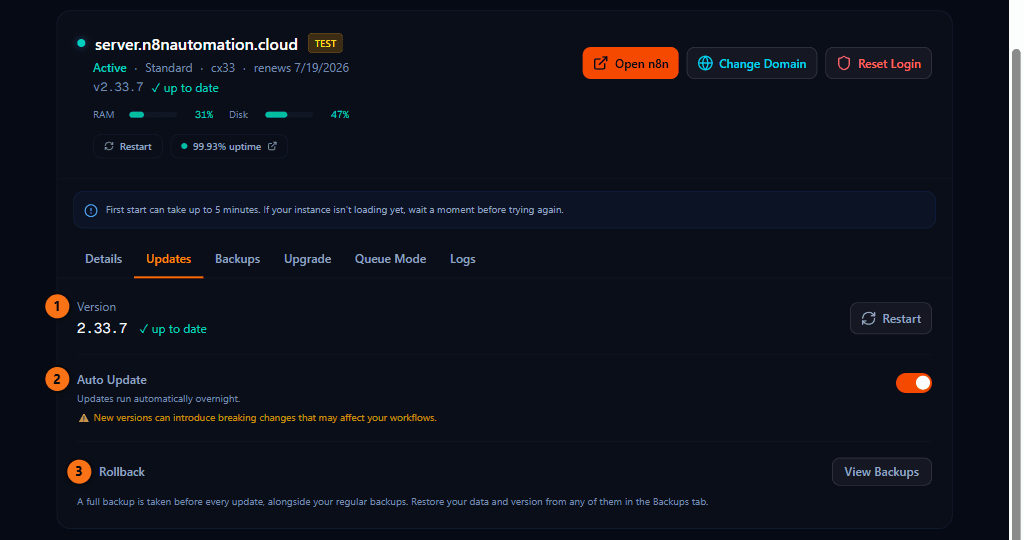
Updates tab — shows your current version against the latest one available. Click Update to apply it. A safety backup is taken automatically first, so a rollback is always one click away in Backups & restore if something about the new version doesn't work for you.
Auto-Update
Turn on Auto-Update and new versions install themselves overnight without you doing anything. Leave it off and we'll email you when an update is available instead.
Scaling up
Outgrowing your current plan doesn't mean starting over — resizing keeps your instance, domain, and data in place.
Choosing a bigger plan
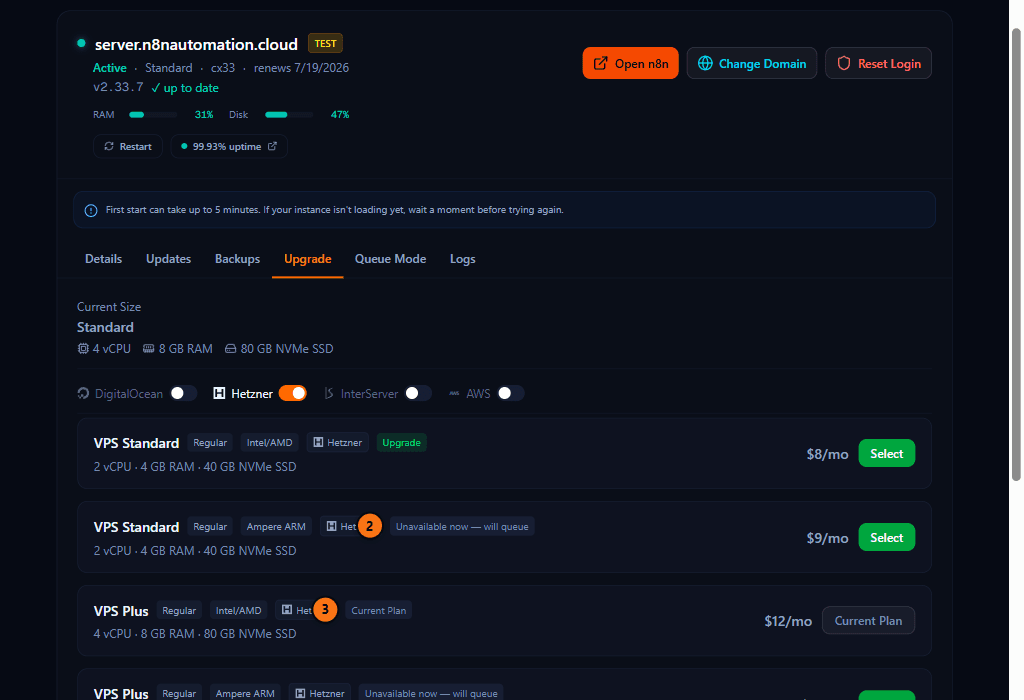
Upgrade tab — browse plans across DigitalOcean, Hetzner, InterServer, and Lightsail, toggle providers on or off to narrow the list, and pick a region for DigitalOcean or Lightsail targets. If you're mid-trial, upgrading ends the trial immediately and charges you the new plan's full price that day. On a paid plan, the price difference is prorated onto your next invoice instead — nothing charged the day you upgrade.
When a plan is temporarily full
Some Hetzner plans and regions occasionally run out of capacity. If that happens, your upgrade is queued automatically and completes as soon as room frees up — you can cancel a queued upgrade from the same tab if you change your mind.
Queue mode
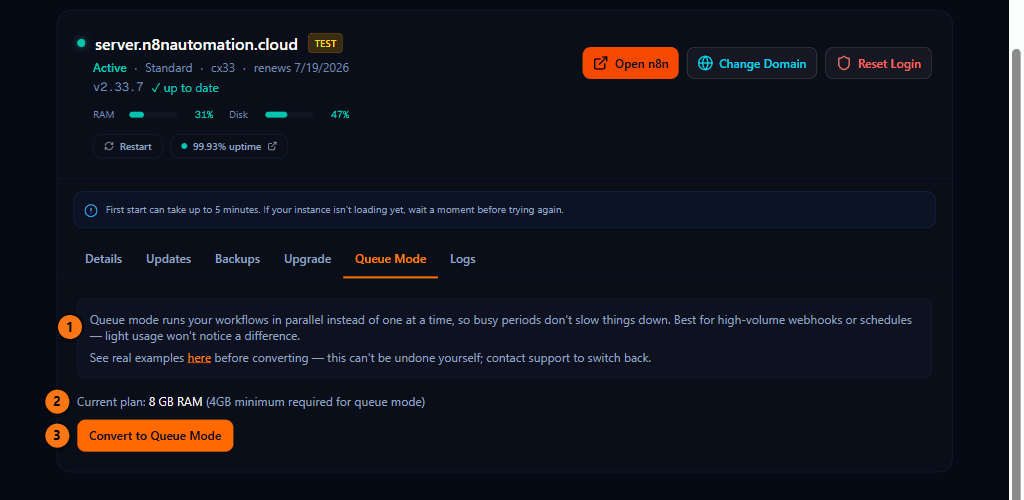
Queue Mode runs your workflow executions through dedicated worker processes instead of a single thread, for instances that need to handle a lot of volume in parallel.
Turning it on
Queue Mode tab — available on plans with 4GB RAM or more. Converting takes a safety backup first and requires checking a confirmation box, since it's a one-way change: reverting means contacting support, not another click. Execution history doesn't carry over to the new setup, and there's a cooldown between conversions.
Logs
There are two different logs, and they're not the same thing.
n8n's own execution log
n8n keeps a log of every workflow execution — inputs, outputs, errors — inside n8n itself, for 15 days. That's not on this dashboard; it's in your n8n instance's own Executions view.
The dashboard's Logs tab
Logs tab — this is the raw output of the n8n and Caddy (SSL) services running on your server, useful for debugging something that isn't showing up as a clean error in n8n. It's hidden by default; click Enable log access to turn it on, then tail 100 to 1,000 lines, filter down to problems only, or download the current view as a .txt file.

Migrating workflows
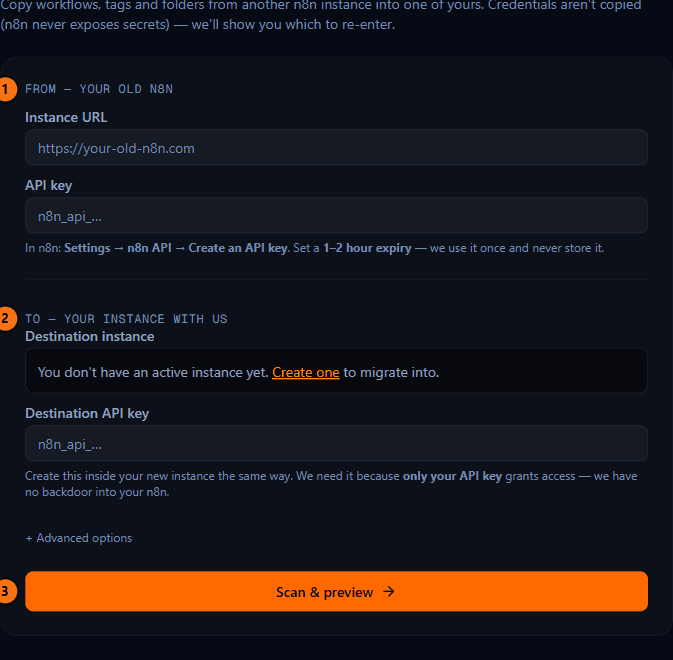
/dashboard/migrate moves workflows, tags, and folders from any other n8n instance — your own VPS, n8n Cloud, another host — into one you're running here.
Connecting
Enter your source instance's URL and API key — in n8n: Settings → n8n API → Create an API key. Set the key to expire in 1–2 hours; we only use it once, during the migration itself, and never store it. Then pick which of your instances here should receive everything, and choose how to handle name conflicts: rename, skip, or replace.
What gets copied, and what doesn't
n8n's API never exposes saved credential values, so we can't copy them either — only your API key grants access to your data, and there's no backdoor around that. The preview step lists exactly how many credentials you'll need to re-enter by hand after migration finishes, before you start.
Running it
Migration runs in the background with a live progress bar for workflows, tags, and folders. Anything that fails gets a Retry option without restarting the whole job. Imported workflows land inactive, so nothing starts running automatically — turn on the ones you want live. Once everything's confirmed, revoke the source instance's API key.
Billing & subscription
/dashboard/billing covers every instance you're subscribed to, including past invoices — /dashboard/invoices redirects here now.
Payment and plan changes
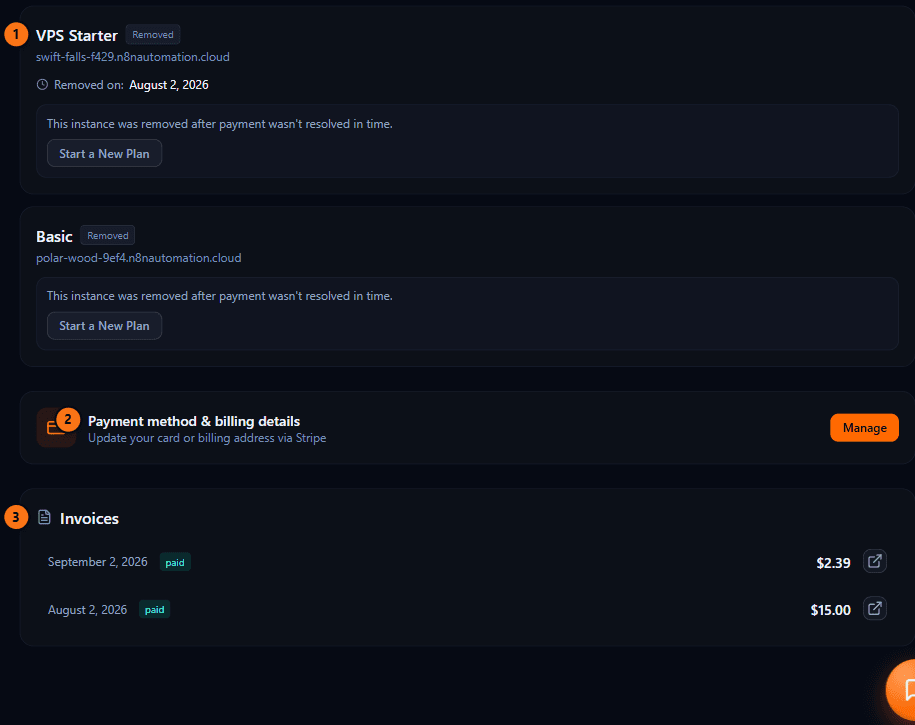
Each instance has its own card showing plan, price, and status: Trial, Active, Payment failed, Ending soon, or Ended. If a payment fails, your instance keeps running while you fix it — Update Payment Method opens Stripe's portal, and the card shows the exact date it'll be removed if the issue isn't resolved. Cancel Subscription (also via the Stripe portal) lets your instance run until the end of the period you already paid for; Resume Subscription undoes a cancellation any time before then, or restarts a fully-ended one within the same grace window.
Invoices and payment methods
The Manage button opens Stripe's customer portal for updating your card or billing address. Past invoices are listed with their status and a link to the hosted receipt for each one.
Affiliate program
Every account gets a referral link automatically — there's no separate signup.
Sharing your link
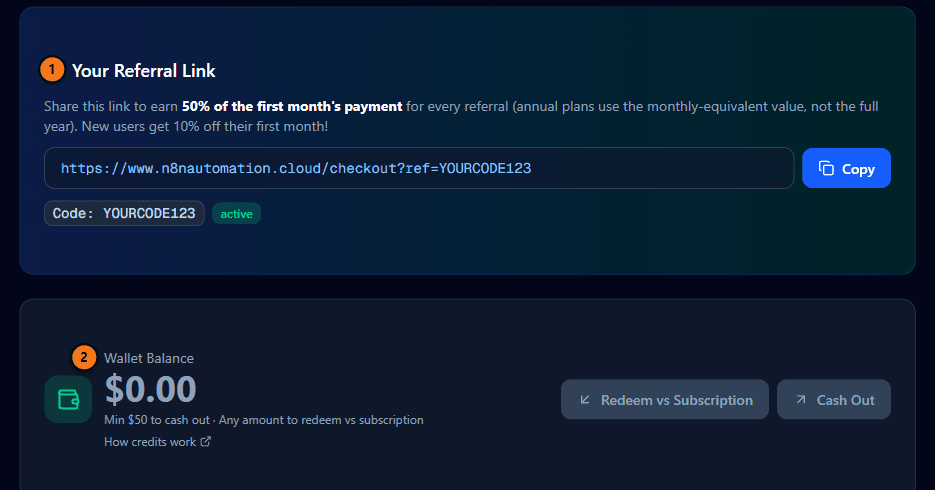
/dashboard/affiliate — copy your personal ?ref= link or code and share it. Anyone who signs up through it gets 10% off their first month, and you earn 50% of their first month's payment once they convert from trial to paid.
Getting paid
Earned commissions sit in your wallet. Apply the balance as a credit against your own subscription anytime, or cash out once you've got at least $50 — both options are on the same page, along with a full history of every referral and every wallet transaction.
Account settings
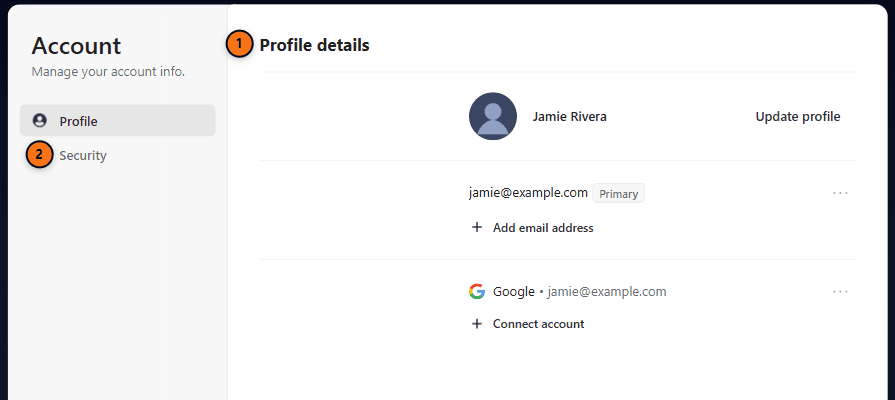
/dashboard/profile is a full account-management screen — email, password, connected accounts, active sessions, two-factor authentication, and account deletion all live there, handled directly by our authentication provider rather than a page we built ourselves. Nothing about your instances or billing lives on this page; see Billing & subscription for that.
Still stuck?
This page covers what the dashboard does; the FAQ covers common questions about plans and pricing. For anything else, live chat gets the fastest answer, or email [email protected].