Easy Image Captioning with Gemini 1.5 Pro
Workflow JSON
{"meta": {"instanceId": "408f9fb9940c3cb18ffdef0e0150fe342d6e655c3a9fac21f0f644e8bedabcd9"}, "nodes": [{"id": "0b64edf1-57e0-4704-b78c-c8ab2b91f74d", "name": "When clicking \u2018Test workflow\u2019", "type": "n8n-nodes-base.manualTrigger", "position": [480, 300], "parameters": {}, "typeVersion": 1}, {"id": "a875d1c5-ccfe-4bbf-b429-56a42b0ca778", "name": "Google Gemini Chat Model", "type": "@n8n/n8n-nodes-langchain.lmChatGoogleGemini", "position": [1280, 720], "parameters": {"options": {}, "modelName": "models/gemini-1.5-flash"}, "credentials": {"googlePalmApi": {"id": "", "name": "[Your googlePalmApi]"}}, "typeVersion": 1}, {"id": "a5e00543-dbaa-4e62-afb0-825ebefae3f3", "name": "Structured Output Parser", "type": "@n8n/n8n-nodes-langchain.outputParserStructured", "position": [1480, 720], "parameters": {"jsonSchemaExample": "{\n\t\"caption_title\": \"\",\n\t\"caption_text\": \"\"\n}"}, "typeVersion": 1.2}, {"id": "bb9af9c6-6c81-4e92-a29f-18ab3afbe327", "name": "Get Info", "type": "n8n-nodes-base.editImage", "position": [1100, 400], "parameters": {"operation": "information"}, "typeVersion": 1}, {"id": "8a0dbd5d-5886-484a-80a0-486f349a9856", "name": "Resize For AI", "type": "n8n-nodes-base.editImage", "position": [1100, 560], "parameters": {"width": 512, "height": 512, "options": {}, "operation": "resize"}, "typeVersion": 1}, {"id": "d29f254a-5fa3-46fa-b153-19dfd8e8c6a7", "name": "Calculate Positioning", "type": "n8n-nodes-base.code", "position": [2020, 720], "parameters": {"mode": "runOnceForEachItem", "jsCode": "const { size, output } = $input.item.json;\n\nconst lineHeight = 35;\nconst fontSize = Math.round(size.height / lineHeight);\nconst maxLineLength = Math.round(size.width/fontSize) * 2;\nconst text = `\"${output.caption_title}\". ${output.caption_text}`;\nconst numLinesOccupied = Math.round(text.length / maxLineLength);\n\nconst verticalPadding = size.height * 0.02;\nconst horizontalPadding = size.width * 0.02;\nconst rectPosX = 0;\nconst rectPosY = size.height - (verticalPadding * 2.5) - (numLinesOccupied * fontSize);\nconst textPosX = horizontalPadding;\nconst textPosY = size.height - (numLinesOccupied * fontSize) - (verticalPadding/2);\n\nreturn {\n caption: {\n fontSize,\n maxLineLength,\n numLinesOccupied,\n rectPosX,\n rectPosY,\n textPosX,\n textPosY,\n verticalPadding,\n horizontalPadding,\n }\n}\n"}, "typeVersion": 2}, {"id": "12a7f2d6-8684-48a5-aa41-40a8a4f98c79", "name": "Apply Caption to Image", "type": "n8n-nodes-base.editImage", "position": [2380, 560], "parameters": {"options": {}, "operation": "multiStep", "operations": {"operations": [{"color": "=#0000008c", "operation": "draw", "endPositionX": "={{ $json.size.width }}", "endPositionY": "={{ $json.size.height }}", "startPositionX": "={{ $json.caption.rectPosX }}", "startPositionY": "={{ $json.caption.rectPosY }}"}, {"font": "/usr/share/fonts/truetype/msttcorefonts/Arial.ttf", "text": "=\"{{ $json.output.caption_title }}\". {{ $json.output.caption_text }}", "fontSize": "={{ $json.caption.fontSize }}", "fontColor": "#FFFFFF", "operation": "text", "positionX": "={{ $json.caption.textPosX }}", "positionY": "={{ $json.caption.textPosY }}", "lineLength": "={{ $json.caption.maxLineLength }}"}]}}, "typeVersion": 1}, {"id": "4d569ec8-04c2-4d21-96e1-86543b26892d", "name": "Sticky Note", "type": "n8n-nodes-base.stickyNote", "position": [-120, 80], "parameters": {"width": 423.75, "height": 431.76353488372104, "content": "## Try it out!\n\n### This workflow takes an image and generates a caption for it using AI. The OpenAI node has been able to do this for a while but this workflow demonstrates how to achieve the same with other multimodal vision models such as Google's Gemini.\n\nAdditional, we'll use the Edit Image node to overlay the generated caption onto the image. This can be useful for publications or can be repurposed for copyrights and/or watermarks.\n\n### Need Help?\nJoin the [Discord](https://discord.com/invite/XPKeKXeB7d) or ask in the [Forum](https://community.n8n.io/)!\n"}, "typeVersion": 1}, {"id": "45d37945-5a7a-42eb-8c8c-5940ea276072", "name": "Merge Image & Caption", "type": "n8n-nodes-base.merge", "position": [1620, 400], "parameters": {"mode": "combine", "options": {}, "combineBy": "combineByPosition"}, "typeVersion": 3}, {"id": "53a26842-ad56-4c8d-a59d-4f6d3f9e2407", "name": "Merge Caption & Positions", "type": "n8n-nodes-base.merge", "position": [2200, 560], "parameters": {"mode": "combine", "options": {}, "combineBy": "combineByPosition"}, "typeVersion": 3}, {"id": "b6c28913-b16a-4c59-aa49-47e9bb97f86d", "name": "Get Image", "type": "n8n-nodes-base.httpRequest", "position": [680, 300], "parameters": {"url": "https://images.pexels.com/photos/1267338/pexels-photo-1267338.jpeg?auto=compress&cs=tinysrgb&w=600", "options": {}}, "typeVersion": 4.2}, {"id": "6c25054d-8103-4be9-bea7-6c3dd47f49a3", "name": "Sticky Note1", "type": "n8n-nodes-base.stickyNote", "position": [340, 80], "parameters": {"color": 7, "width": 586.25, "height": 486.25, "content": "## 1. Import an Image \n[Read more about the HTTP request node](https://docs.n8n.io/integrations/builtin/core-nodes/n8n-nodes-base.httprequest)\n\nFor this demonstration, we'll grab an image off Pexels.com - a popular free stock photography site - by using the HTTP request node to download.\n\nIn your own workflows, this can be replaces by other triggers such as webhooks."}, "typeVersion": 1}, {"id": "d1b708e2-31c3-4cd1-a353-678bc33d4022", "name": "Sticky Note2", "type": "n8n-nodes-base.stickyNote", "position": [960, 140], "parameters": {"color": 7, "width": 888.75, "height": 783.75, "content": "## 2. Using Vision Model to Generate Caption\n[Learn more about the Basic LLM Chain](https://docs.n8n.io/integrations/builtin/cluster-nodes/root-nodes/n8n-nodes-langchain.chainllm)\n\nn8n's basic LLM node supports multimodal input by allowing you to specify either a binary or an image url to send to a compatible LLM. This makes it easy to start utilising this powerful feature for visual classification or OCR tasks which have previously depended on more dedicated OCR models.\n\nHere, we've simply passed our image binary as a \"user message\" option, asking the LLM to help us generate a caption title and text which is appropriate for the given subject. Once generated, we'll pass this text along with the image to combine them both."}, "typeVersion": 1}, {"id": "36a39871-340f-4c44-90e6-74393b9be324", "name": "Sticky Note3", "type": "n8n-nodes-base.stickyNote", "position": [1880, 280], "parameters": {"color": 7, "width": 753.75, "height": 635, "content": "## 3. Overlay Caption on Image \n[Read more about the Edit Image node](https://docs.n8n.io/integrations/builtin/core-nodes/n8n-nodes-base.editimage)\n\nFinally, we\u2019ll perform some basic calculations to place the generated caption onto the image. With n8n's user-friendly image editing features, this can be done entirely within the workflow!\n\nThe Code node tool is ideal for these types of calculations and is used here to position the caption at the bottom of the image. To create the overlay, the Edit Image node enables us to insert text onto the image, which we\u2019ll use to add the generated caption."}, "typeVersion": 1}, {"id": "d175fe97-064e-41da-95fd-b15668c330c4", "name": "Sticky Note4", "type": "n8n-nodes-base.stickyNote", "position": [2660, 280], "parameters": {"width": 563.75, "height": 411.25, "content": "**FIG 1.** Example input image with AI generated caption\n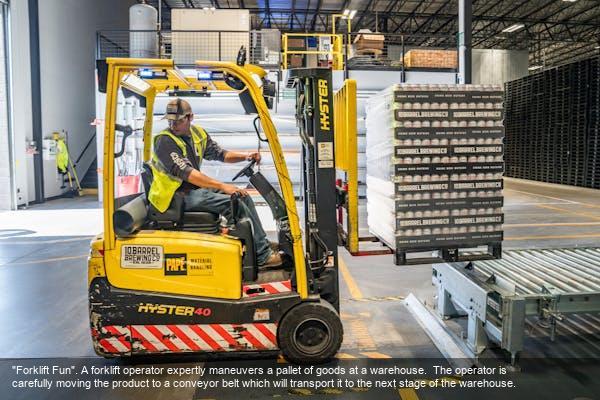"}, "typeVersion": 1}, {"id": "23db0c90-45b6-4b85-b017-a52ad5a9ad5b", "name": "Image Captioning Agent", "type": "@n8n/n8n-nodes-langchain.chainLlm", "position": [1280, 560], "parameters": {"text": "Generate a caption for this image.", "messages": {"messageValues": [{"message": "=You role is to provide an appropriate image caption for user provided images.\n\nThe individual components of a caption are as follows: who, when, where, context and miscellaneous. For a really good caption, follow this template: who + when + where + context + miscellaneous\n\nGive the caption a punny title."}, {"type": "HumanMessagePromptTemplate", "messageType": "imageBinary"}]}, "promptType": "define", "hasOutputParser": true}, "typeVersion": 1.4}], "pinData": {}, "connections": {"Get Info": {"main": [[{"node": "Merge Image & Caption", "type": "main", "index": 0}]]}, "Get Image": {"main": [[{"node": "Resize For AI", "type": "main", "index": 0}, {"node": "Get Info", "type": "main", "index": 0}]]}, "Resize For AI": {"main": [[{"node": "Image Captioning Agent", "type": "main", "index": 0}]]}, "Calculate Positioning": {"main": [[{"node": "Merge Caption & Positions", "type": "main", "index": 1}]]}, "Merge Image & Caption": {"main": [[{"node": "Calculate Positioning", "type": "main", "index": 0}, {"node": "Merge Caption & Positions", "type": "main", "index": 0}]]}, "Image Captioning Agent": {"main": [[{"node": "Merge Image & Caption", "type": "main", "index": 1}]]}, "Google Gemini Chat Model": {"ai_languageModel": [[{"node": "Image Captioning Agent", "type": "ai_languageModel", "index": 0}]]}, "Structured Output Parser": {"ai_outputParser": [[{"node": "Image Captioning Agent", "type": "ai_outputParser", "index": 0}]]}, "Merge Caption & Positions": {"main": [[{"node": "Apply Caption to Image", "type": "main", "index": 0}]]}, "When clicking \u2018Test workflow\u2019": {"main": [[{"node": "Get Image", "type": "main", "index": 0}]]}}}How to Import This Workflow
- 1Copy the workflow JSON above using the Copy Workflow JSON button.
- 2Open your n8n instance and go to Workflows.
- 3Click Import from JSON and paste the copied workflow.
Don't have an n8n instance? Start your free trial at n8nautomation.cloud
Related Templates
Text to Speech (OpenAI)
Converts text into natural-sounding speech using OpenAI's Text-to-Speech API. It sends your input text to OpenAI and receives an audio file in return. This is useful for creating audio versions of articles, generating voiceovers for videos, or providing accessibility features for web content. Quickly transform written content into engaging audio.
Automate Customer Support Issue Resolution using AI Text Classifier
Automate the resolution of customer support issues by classifying their state and applying AI-driven actions. This workflow connects Jira for issue management, OpenAI for AI classification and response generation, and Slack for notifications. Support teams can use this to automatically close resolved tickets, remind customers about open issues, or escalate complex cases.
AI-Powered Candidate Shortlisting Automation for ERPNext
Automate AI-powered candidate shortlisting for ERPNext job applications. This workflow connects ERPNext, Google Gemini, WhatsApp, and Outlook to process resumes, evaluate candidates, and communicate outcomes. Recruiters and HR departments can use this to efficiently screen applicants, automatically reject unqualified candidates, and send acceptance notifications. It significantly reduces manual review time and streamlines the hiring process.